气泡外样式
选择器
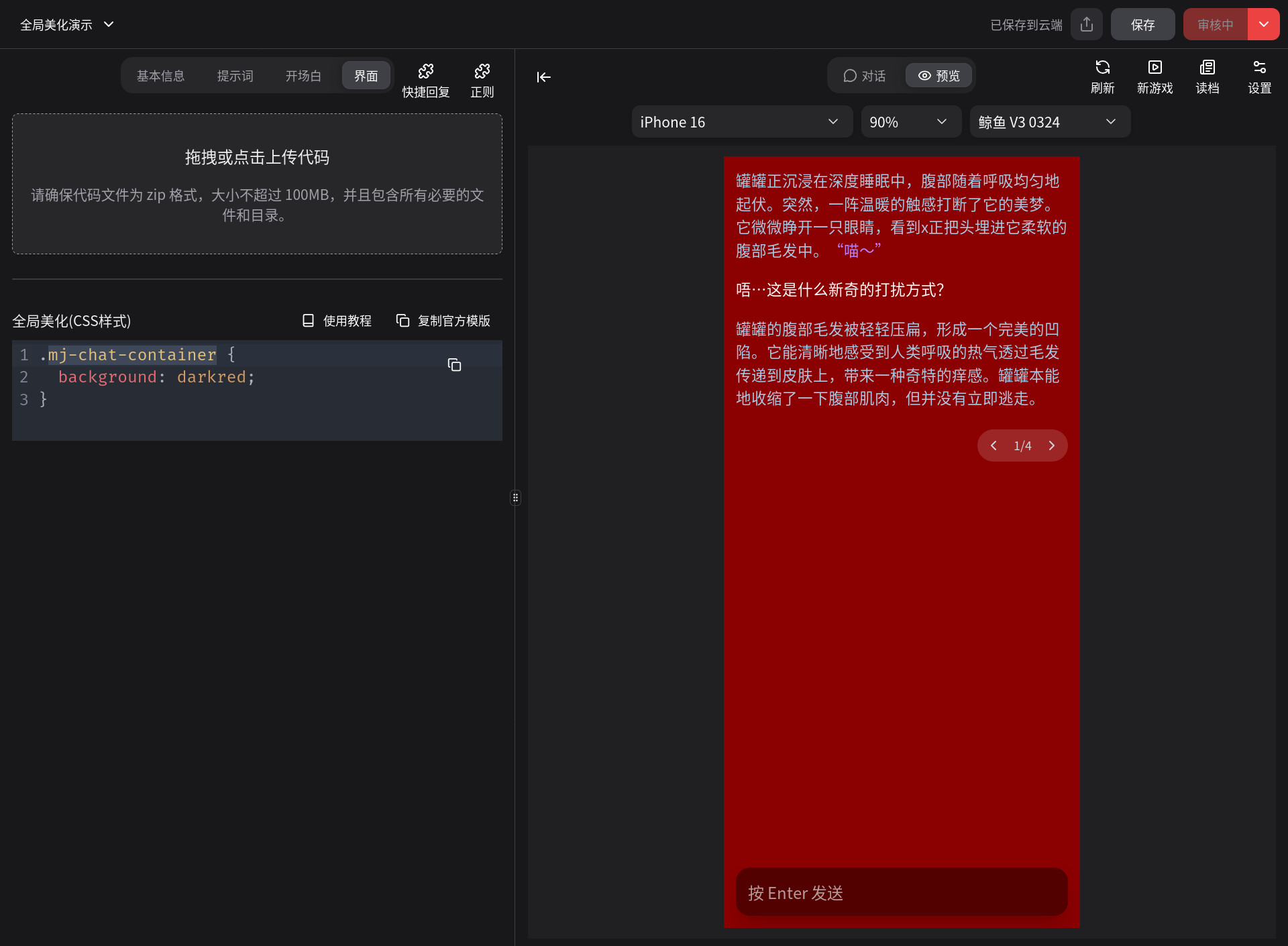
整个页面 .mj-chat-container
如图所示,整个页面的背景色改为了深红色:
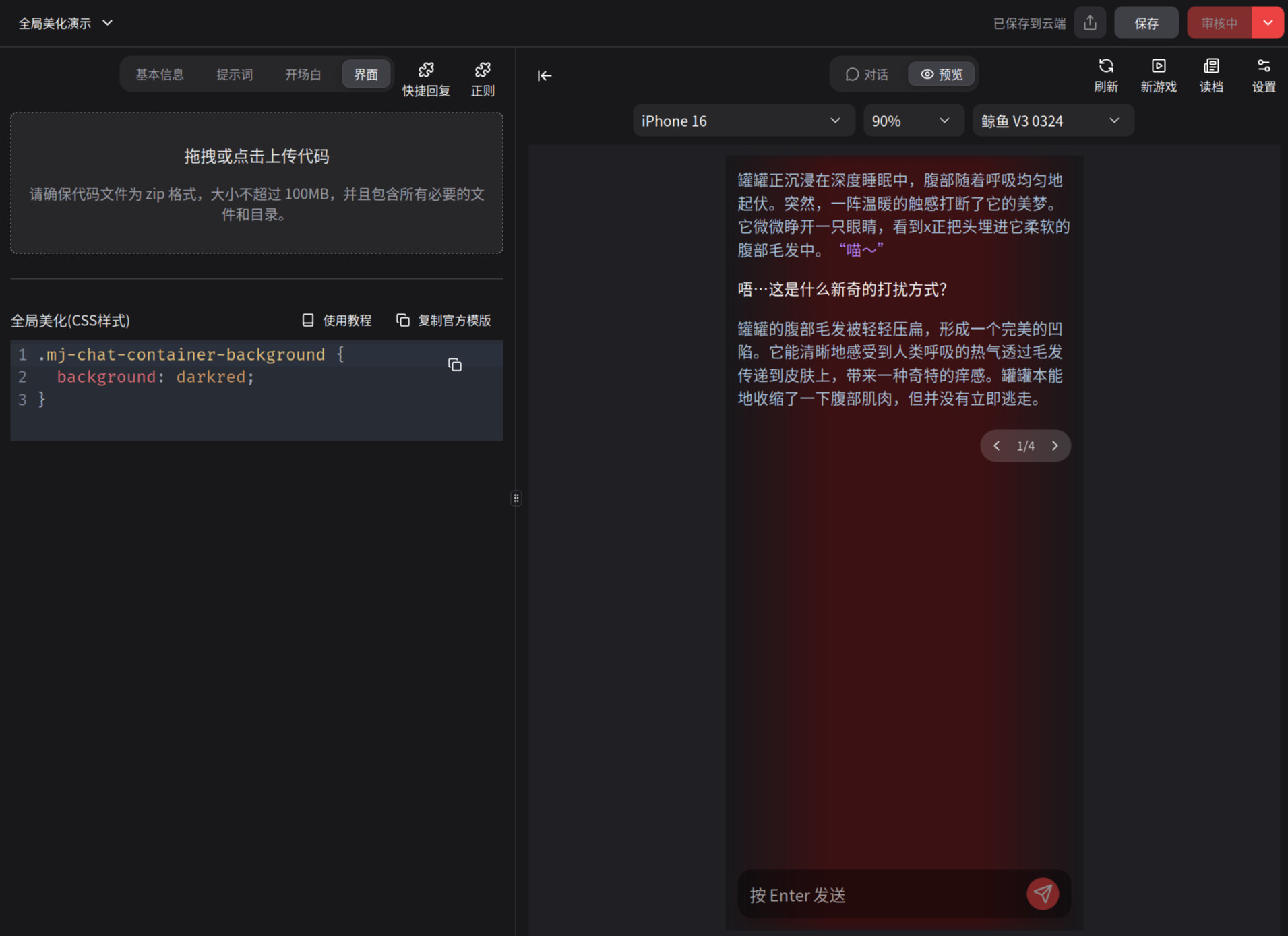
背景图片 .mj-chat-container-background
如图所示,背景被设为了深红色:
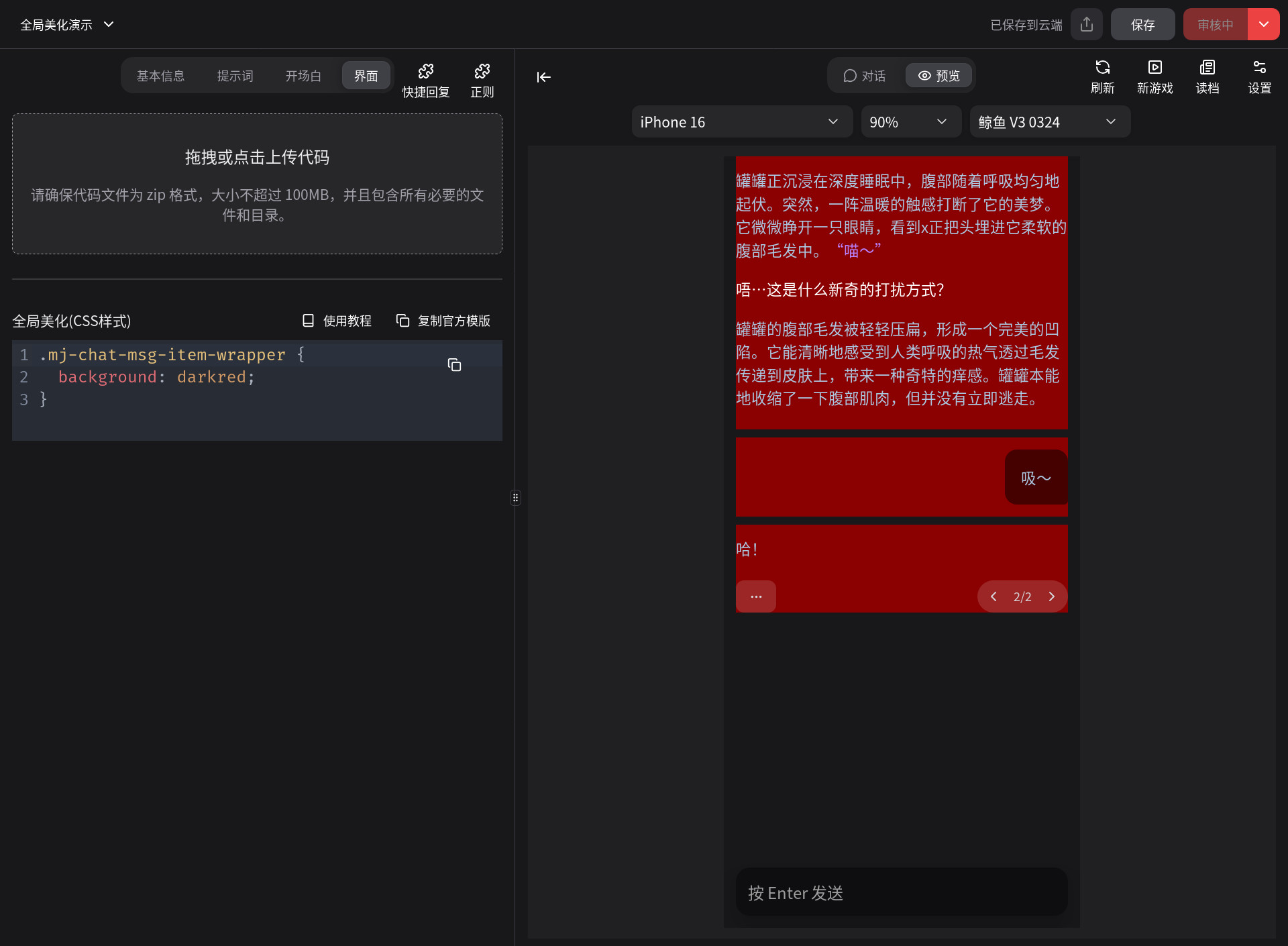
消息 .mj-chat-msg-item-wrapper
如图所示,消息背景颜色被设置成了红色:
它与气泡内样式中的 .mes_text 不同,它还包含了消息选项的部分。
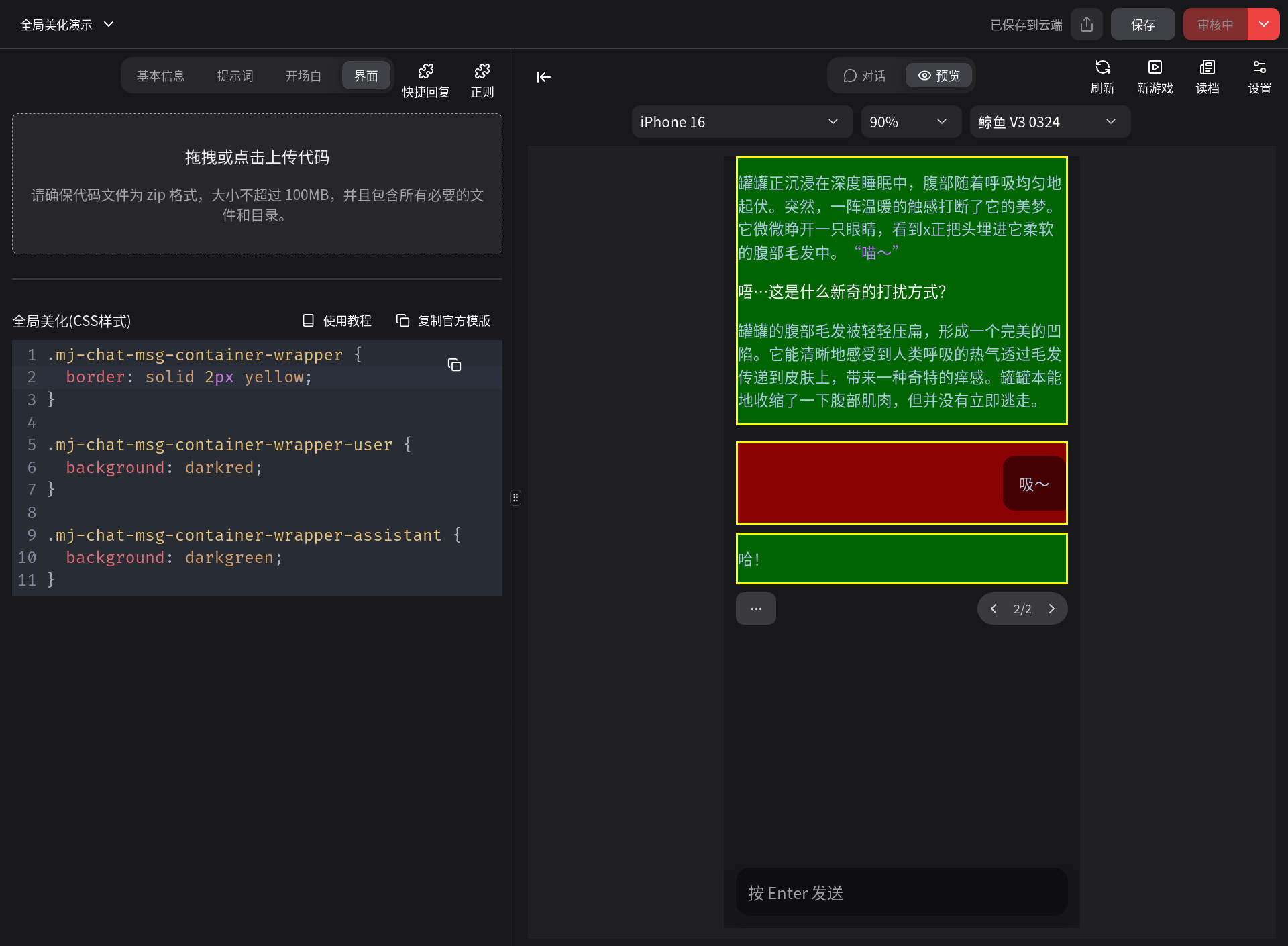
消息容器 .mj-chat-msg-container-wrapper
同时还可以对用户消息和AI消息分别设置:
- 用户消息
.mj-chat-msg-container-wrapper-user - AI 消息
.mj-chat-msg-container-wrapper-assistant
如图所示,消息容器设置了黄色边框,用户消息设置了红色背景颜色,AI消息设置了绿色背景颜色。
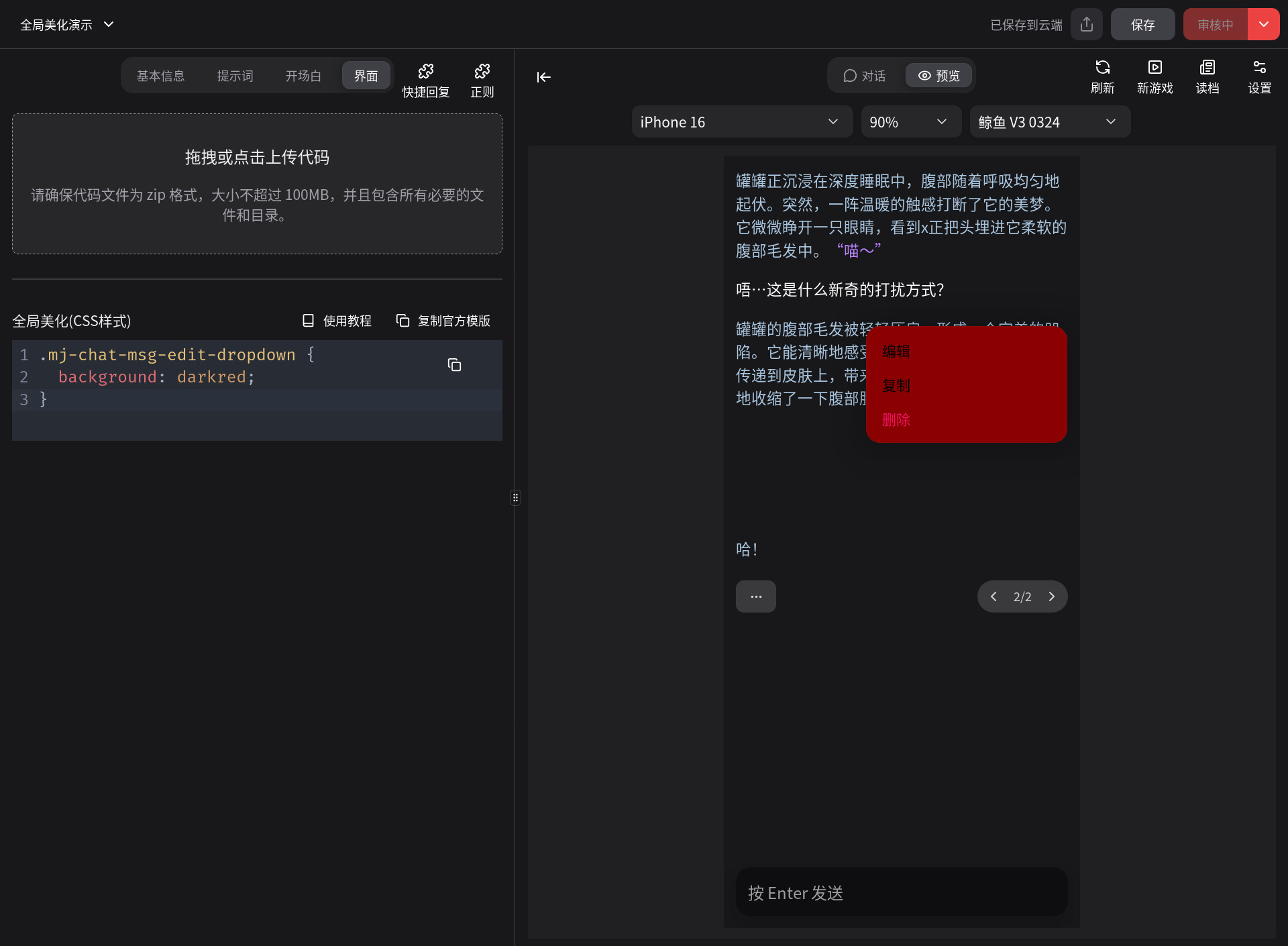
用户消息菜单 .mj-chat-msg-edit-dropdown
如图所示,将点击用户消息弹出菜单的背景颜色调成了深红色:
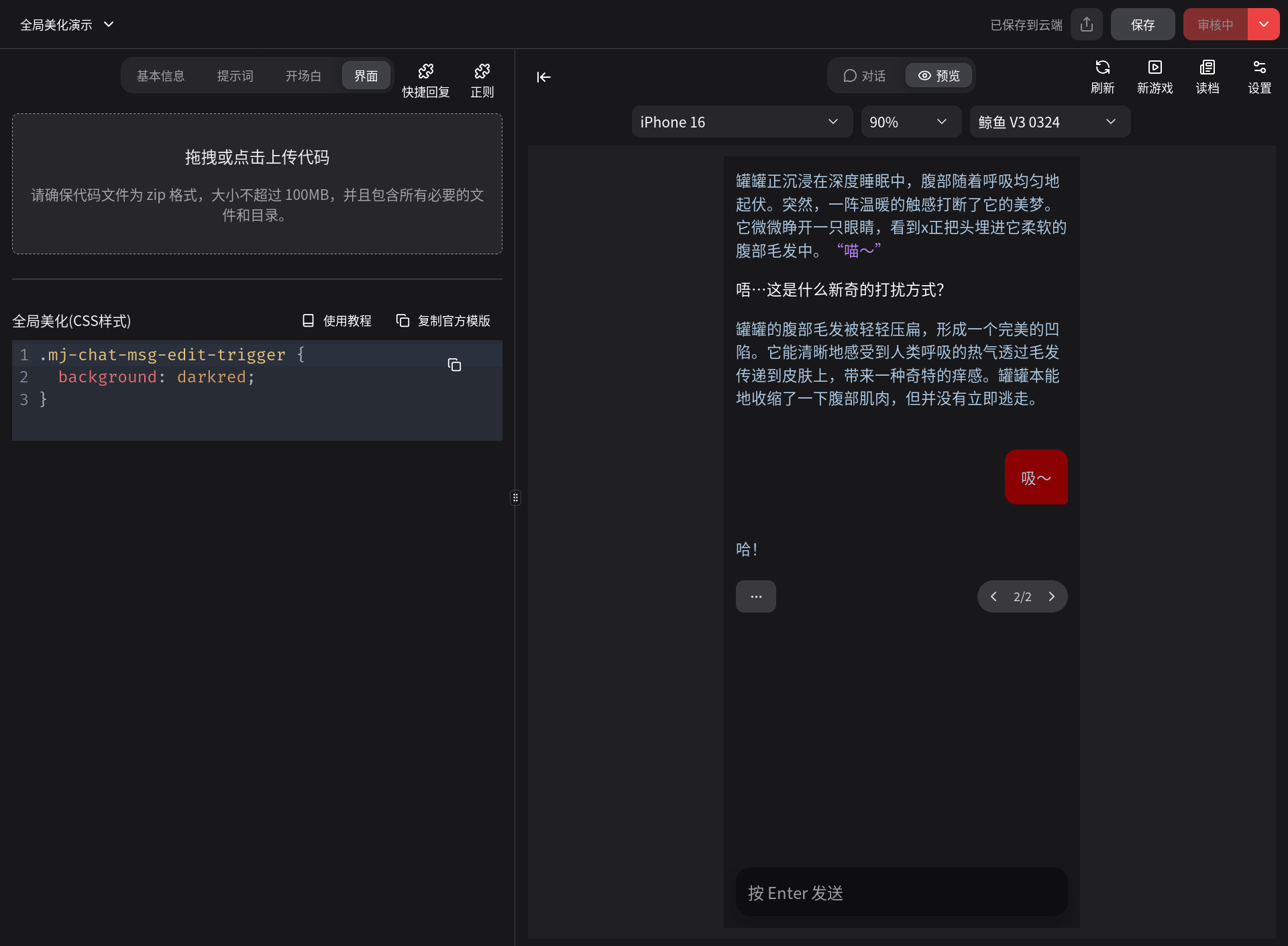
用户消息气泡 .mj-chat-msg-edit-trigger
如图所示,用户消息气泡背景颜色设置为了深红色:
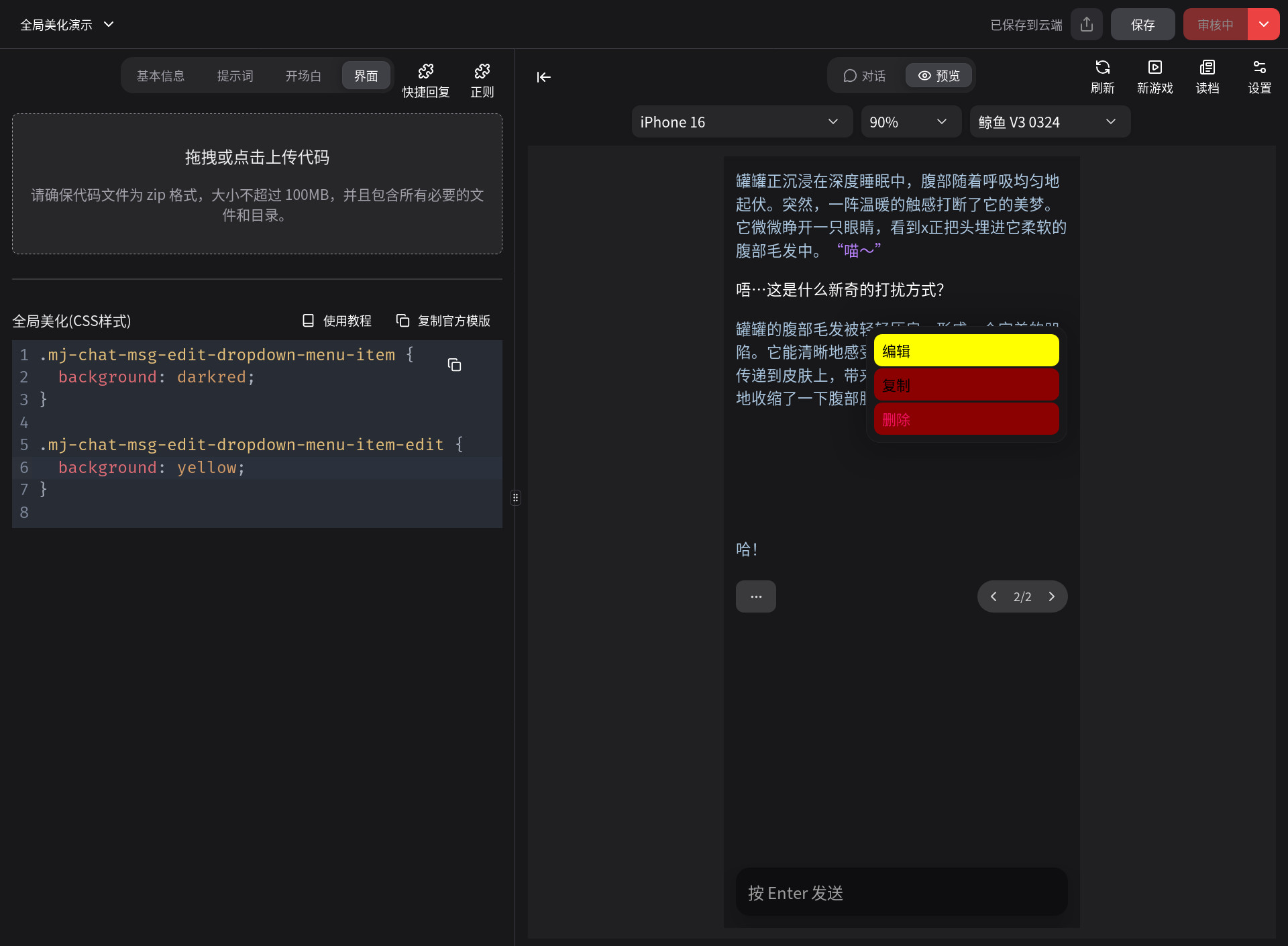
用户消息菜单项 .mj-chat-msg-edit-dropdown-menu-item
如图所示,将菜单项背景颜色设置为了红色,额外的,把编辑选项背景颜色设置为黄色:
你可以对这些选项进行单独设置:
- 编辑
.mj-chat-msg-edit-dropdown-menu-item-edit - 复制
.mj-chat-msg-edit-dropdown-menu-item-copy - 删除
.mj-chat-msg-edit-dropdown-menu-item-delete
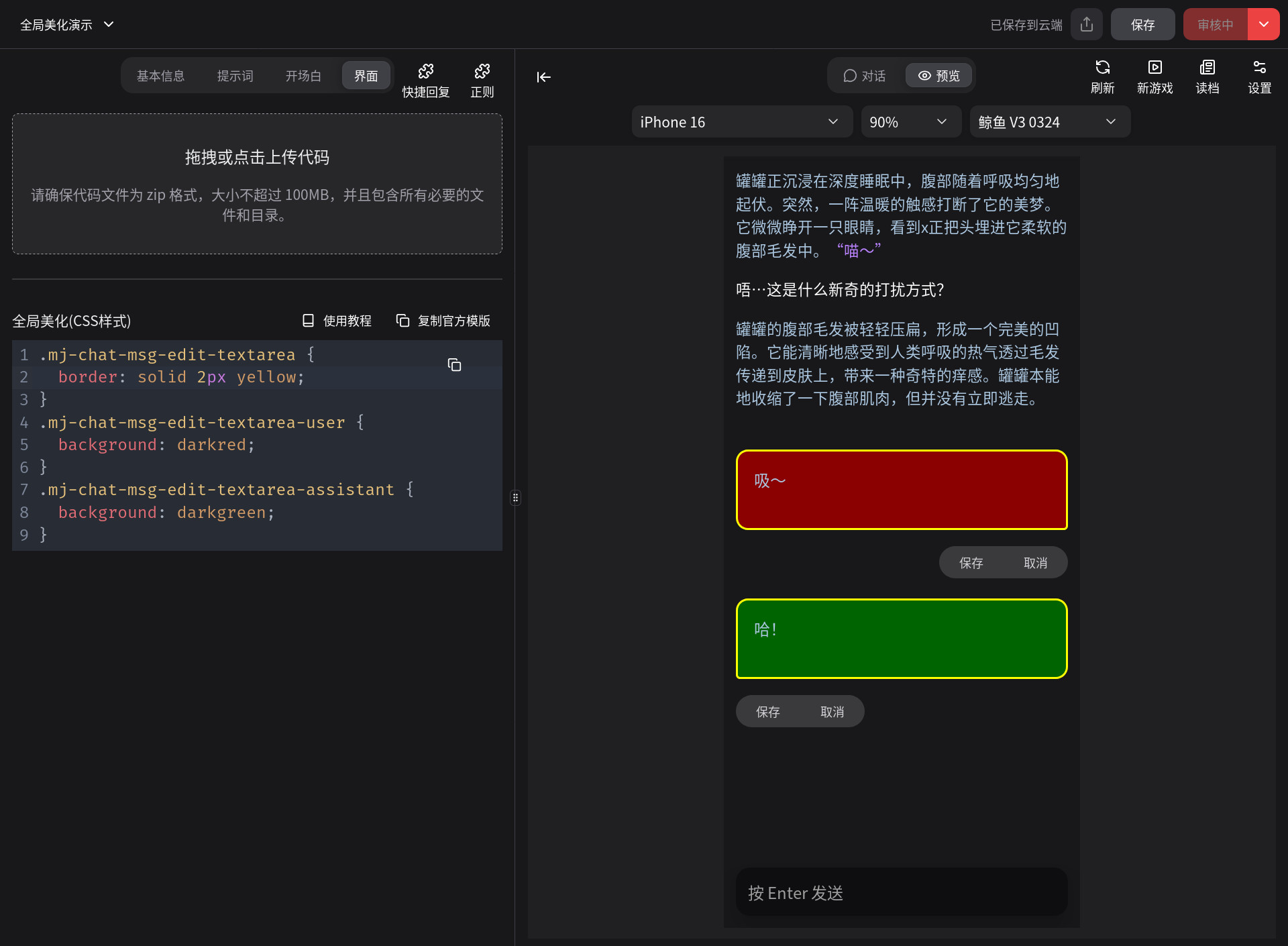
编辑区 .mj-chat-msg-edit-textarea
如图所示,将消息编辑区设置了黄色边框。额外的,还可以对用户消息和AI消息进行区分:
- 用户消息
.mj-chat-msg-edit-textarea-user - AI 消息
.mj-chat-msg-edit-textarea-assistant
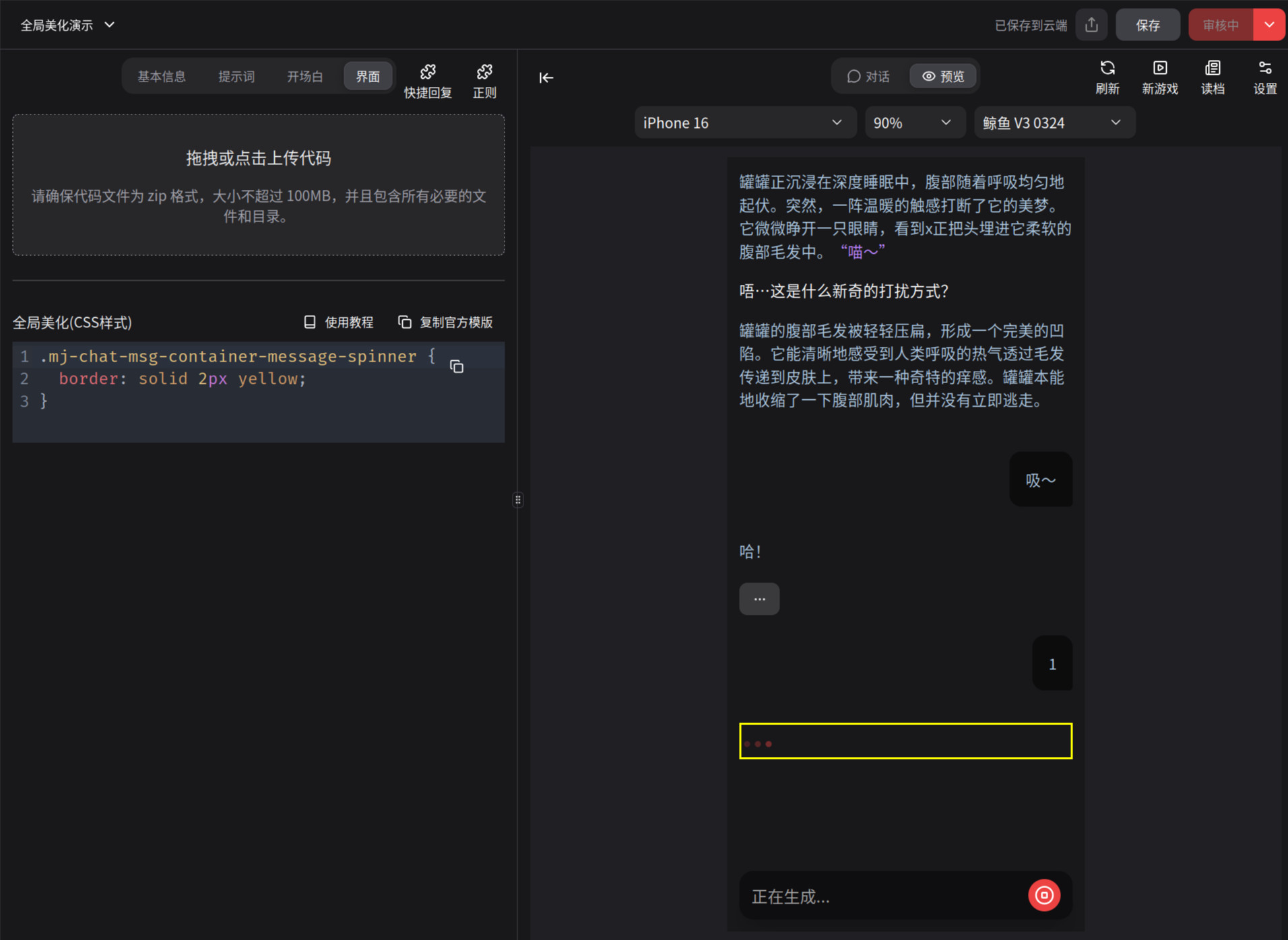
消息生成中指示 .mj-chat-msg-container-message-spinner
如图所示,生成指示设置了黄色边框:
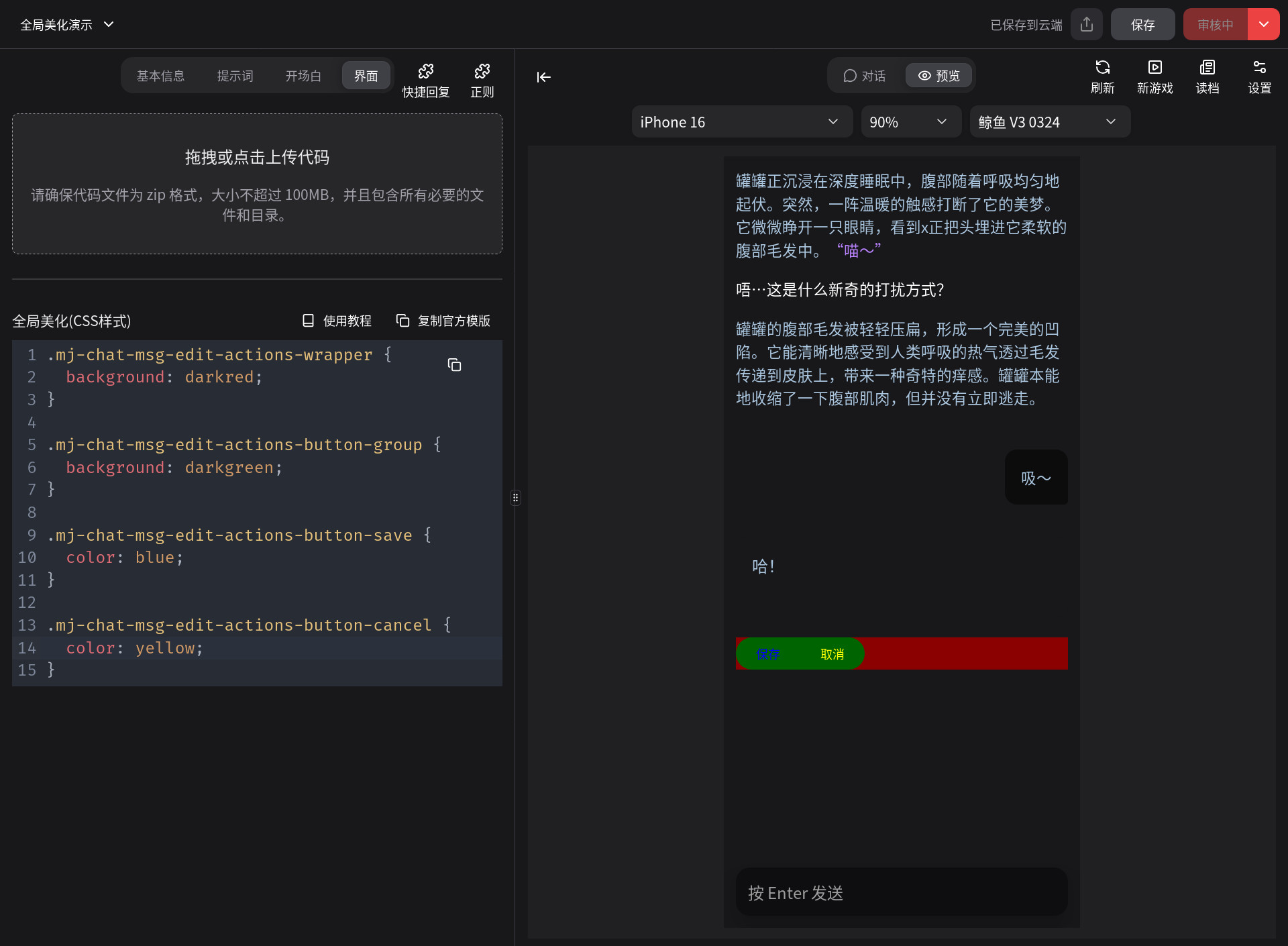
编辑按钮相关
- 按钮容器:
.mj-chat-msg-edit-actions-wrapper如图所示,背景被设为了深红色 - 按钮组:
.mj-chat-msg-edit-actions-button-group如图所示,背景被设为了绿色 - 保存按钮:
.mj-chat-msg-edit-actions-button-save如图所示,文字颜色被设为了蓝色 - 取消按钮:
.mj-chat-msg-edit-actions-button-cancel如图所示,文字颜色被设为了黄色
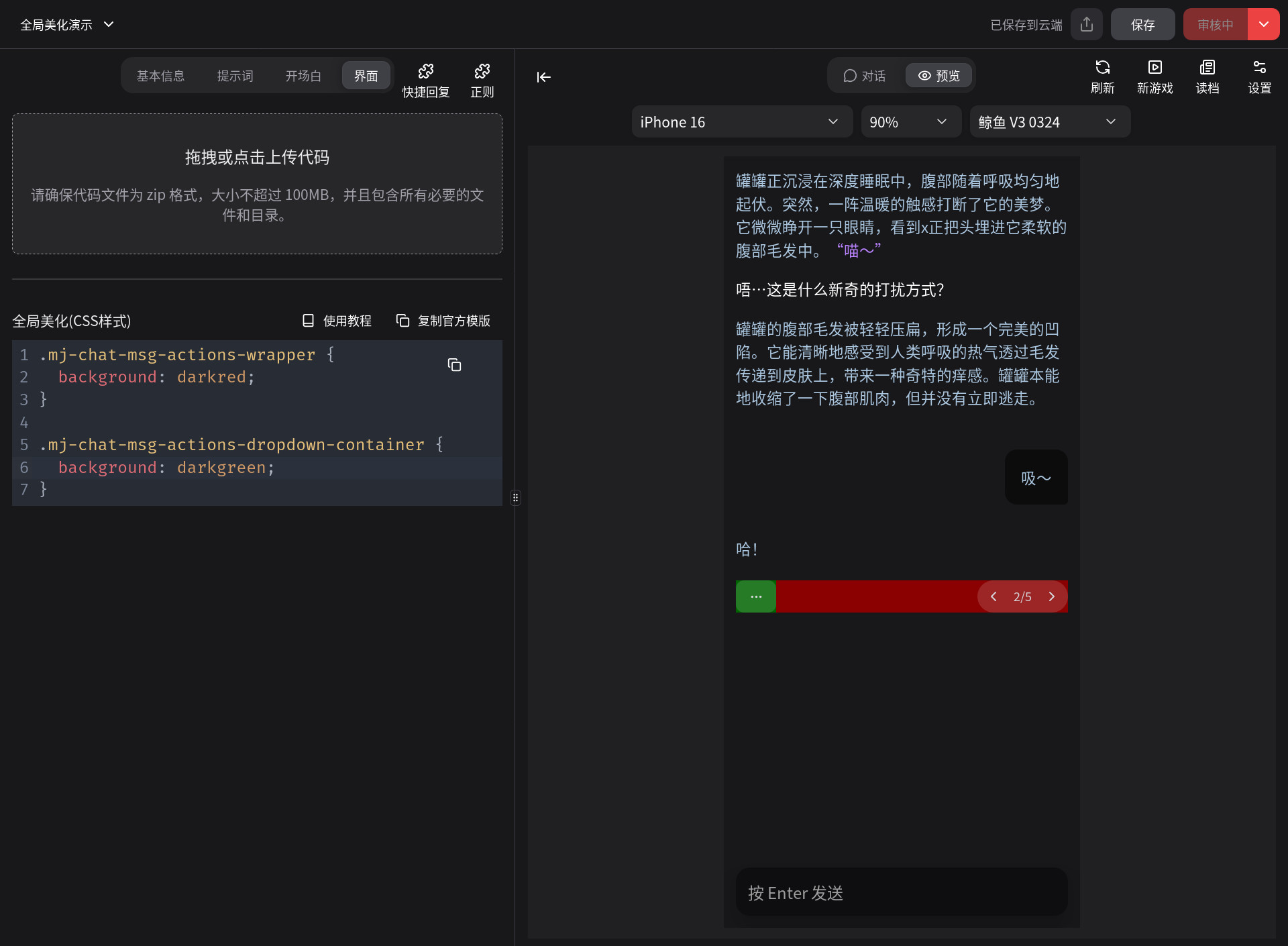
AI 消息选项
如图所示,.mj-chat-msg-actions-wrapper设置为了红色,.mj-chat-msg-actions-dropdown-container被设置为了绿色。
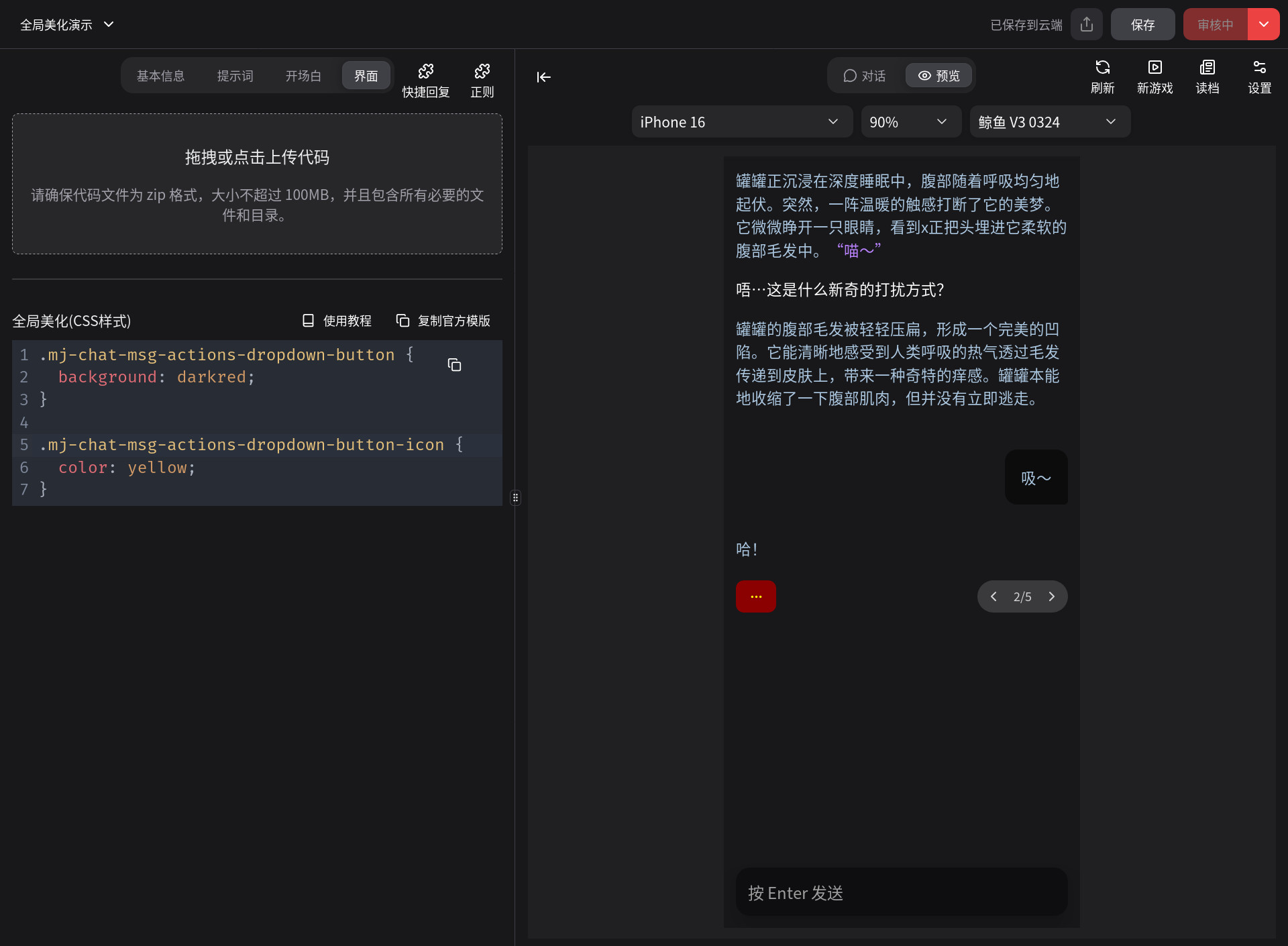
AI 消息选项按钮 .mj-chat-msg-actions-dropdown-button
如图所示,背景颜色设为深红色。同时,用.mj-chat-msg-actions-dropdown-button-icon设置按钮内的图标样式为黄字。
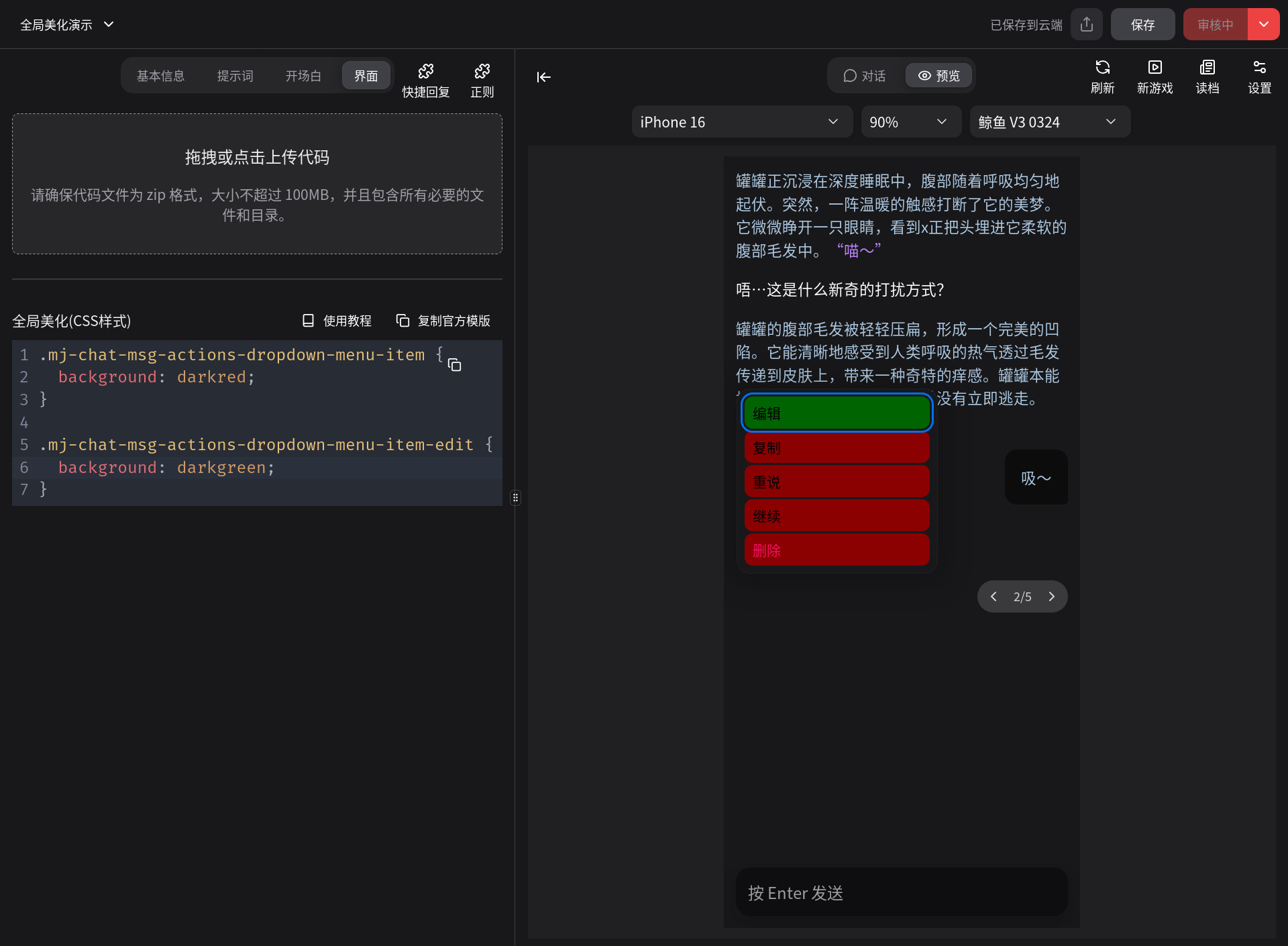
AI 消息选项菜单 .mj-chat-msg-actions-dropdown
如图所示,将菜单项背景颜色设置为了红色,额外的,把编辑选项背景颜色设置为绿色:
你可以对这些选项进行单独设置:
- 编辑
.mj-chat-msg-actions-dropdown-menu-item-edit - 复制
.mj-chat-msg-actions-dropdown-menu-item-copy - 重说
.mj-chat-msg-actions-dropdown-menu-item-regenerate - 继续
.mj-chat-msg-actions-dropdown-menu-item-continue - 删除
.mj-chat-msg-actions-dropdown-menu-item-delete
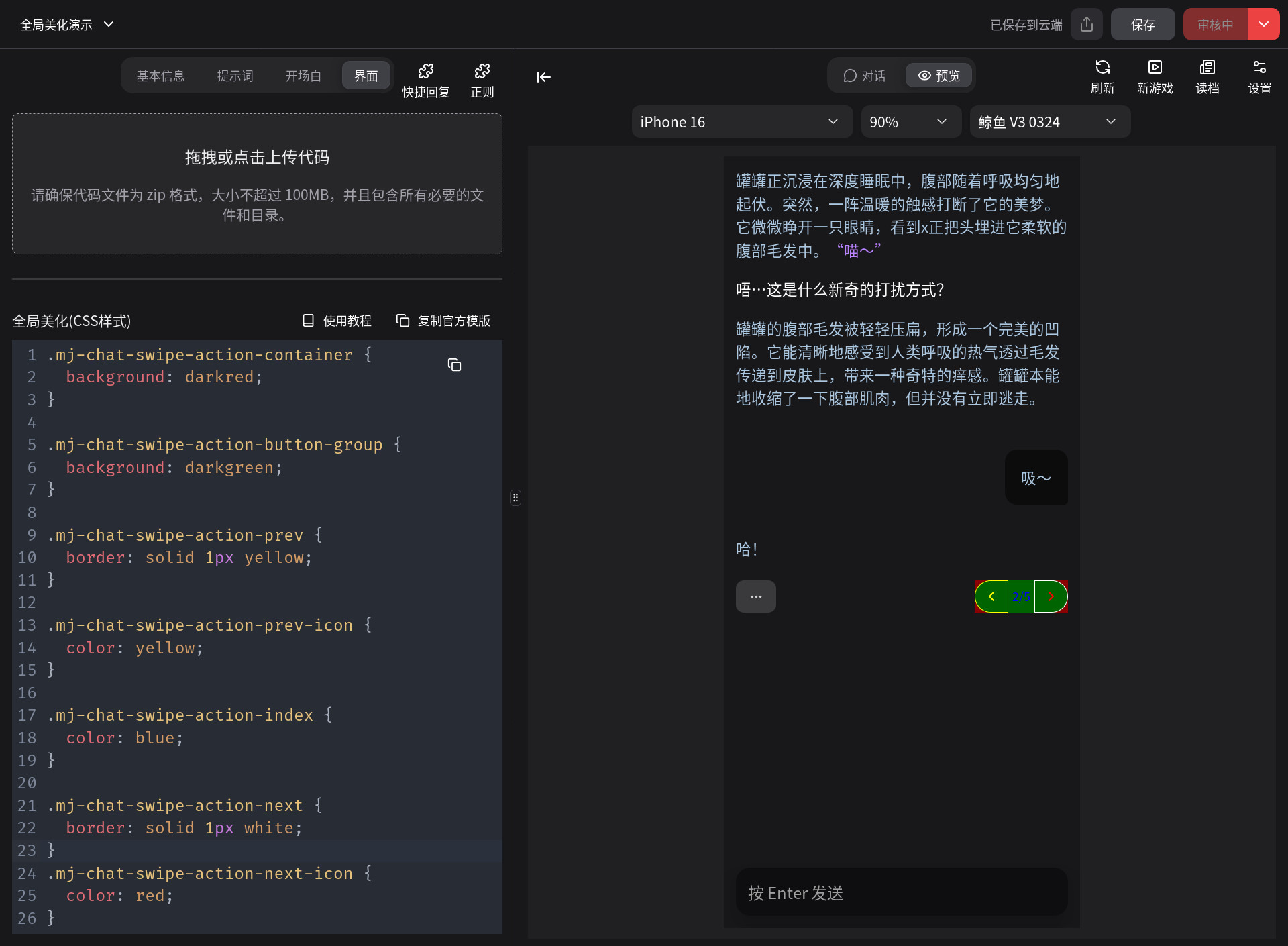
切换消息区
如图所示:
- 容器
.mj-chat-swipe-action-container的背景颜色设置为了红色 - 按钮组
.mj-chat-swipe-action-button-group的背景颜色设为了绿色 - 左箭头
.mj-chat-swipe-action-prev边框设为了黄色 - 左箭头图标
.mj-chat-swipe-action-prev-icon字体颜色设为了黄色 - 序号文本
.mj-chat-swipe-action-index字体设为了蓝色 - 右箭头
.mj-chat-swipe-action-next边框设为了白色 - 右箭头图标
.mj-chat-swipe-action-next-icon字体设为了红色
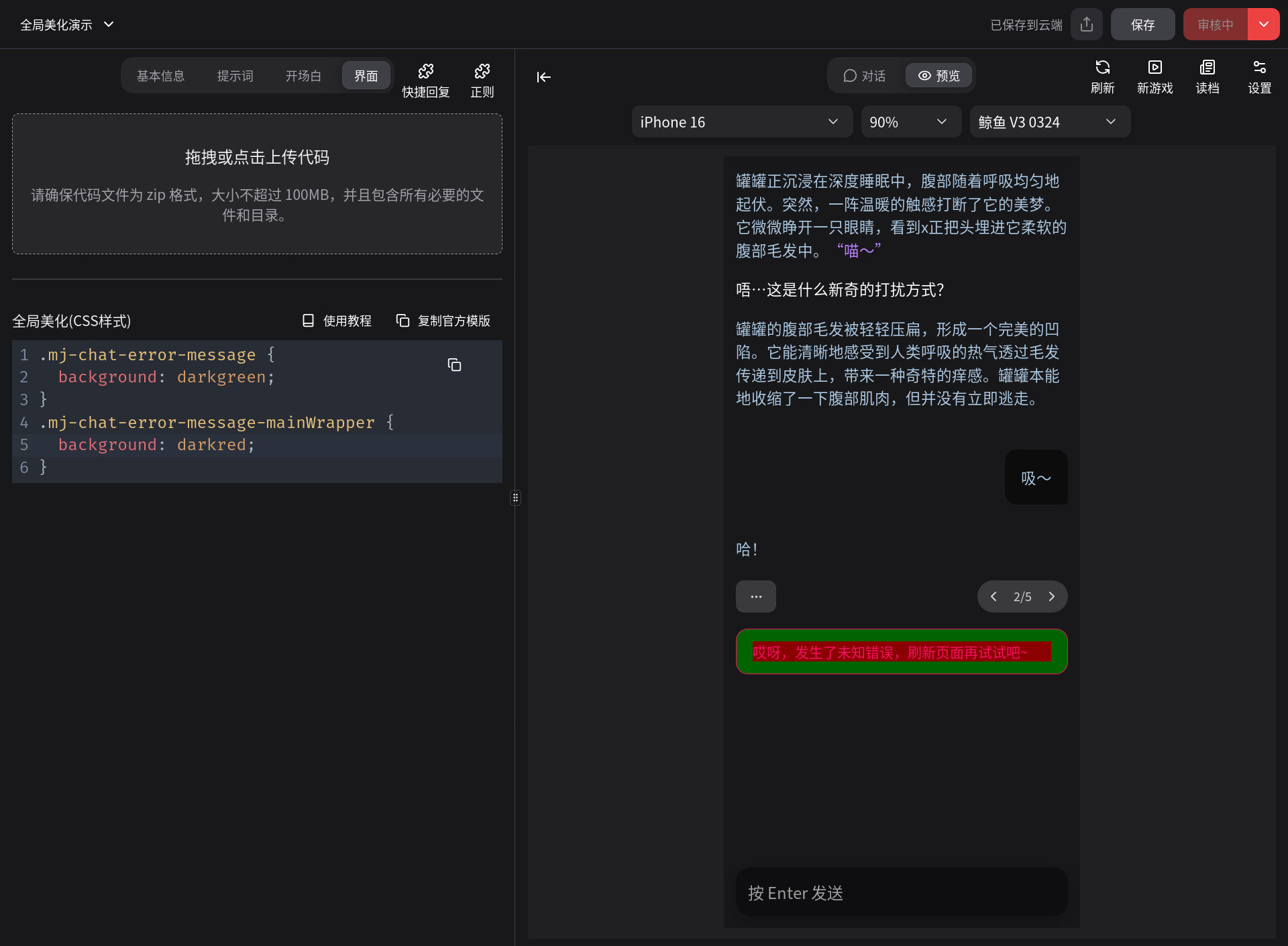
错误信息
如图所示:
.mj-chat-error-message背景颜色设为了绿色.mj-chat-error-message-mainWrapper背景颜色设为了红色
输入区
如图所示:
.mj-chat-input-container边框设为了红色.mj-chat-input-quickreply-container背景颜色设为了绿色.mj-chat-input-quickreply-chip背景颜色设为了蓝色.mj-chat-input-quickreply-chip-2第2个快捷回复背景颜色设为了黄色
可以看到,.mj-chat-input-quickreply-chip-2的最后有一个2,代表第2个快捷回复,你可以任意指定第n个快捷回复的样式。
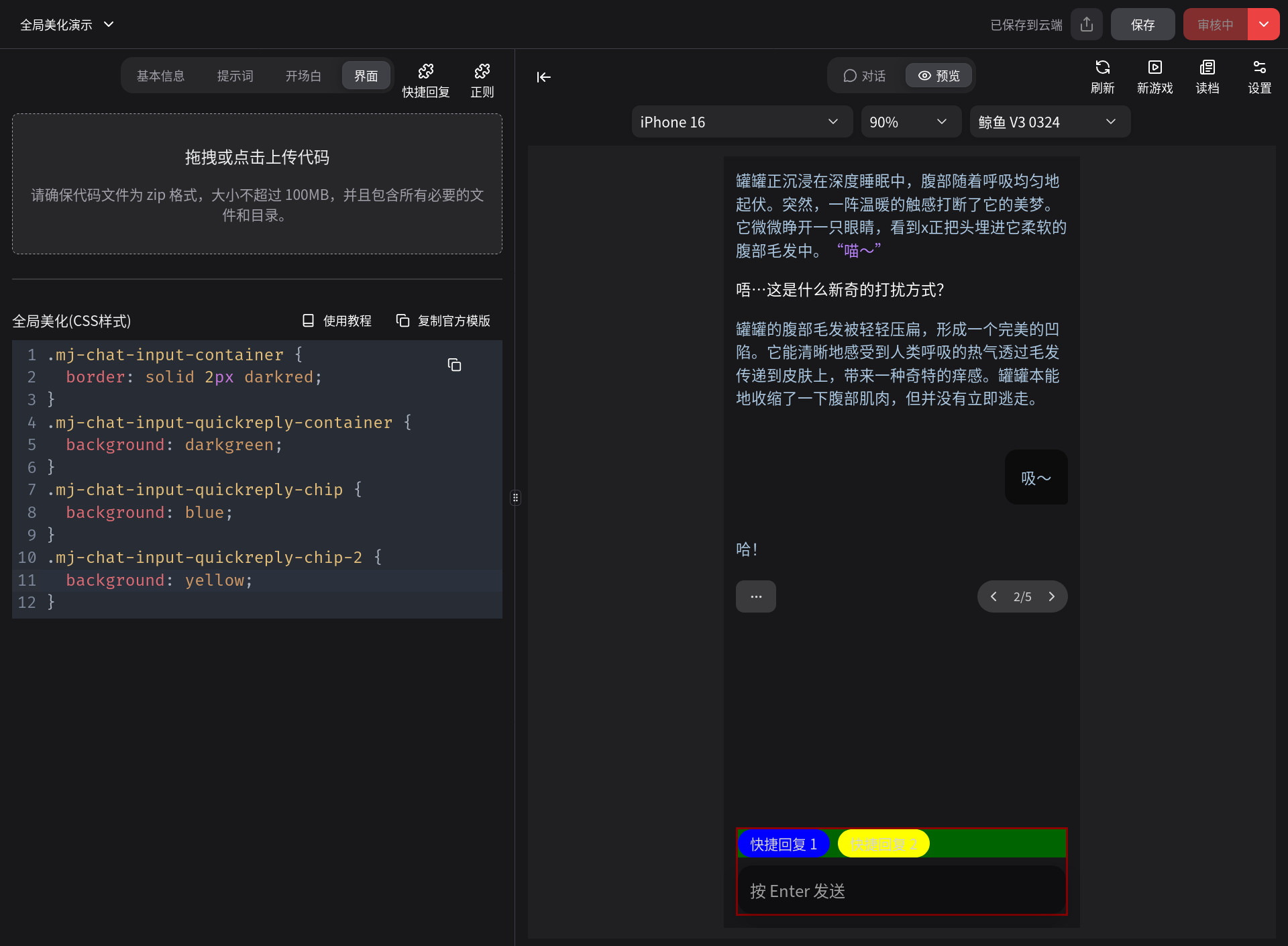
如图所示:
- 输入区域
.mj-chat-input-textarea边框设为了红色 .mj-chat-input-textarea-input边框设为了蓝色.mj-chat-input-textarea-inputWrapper边框设为了绿色
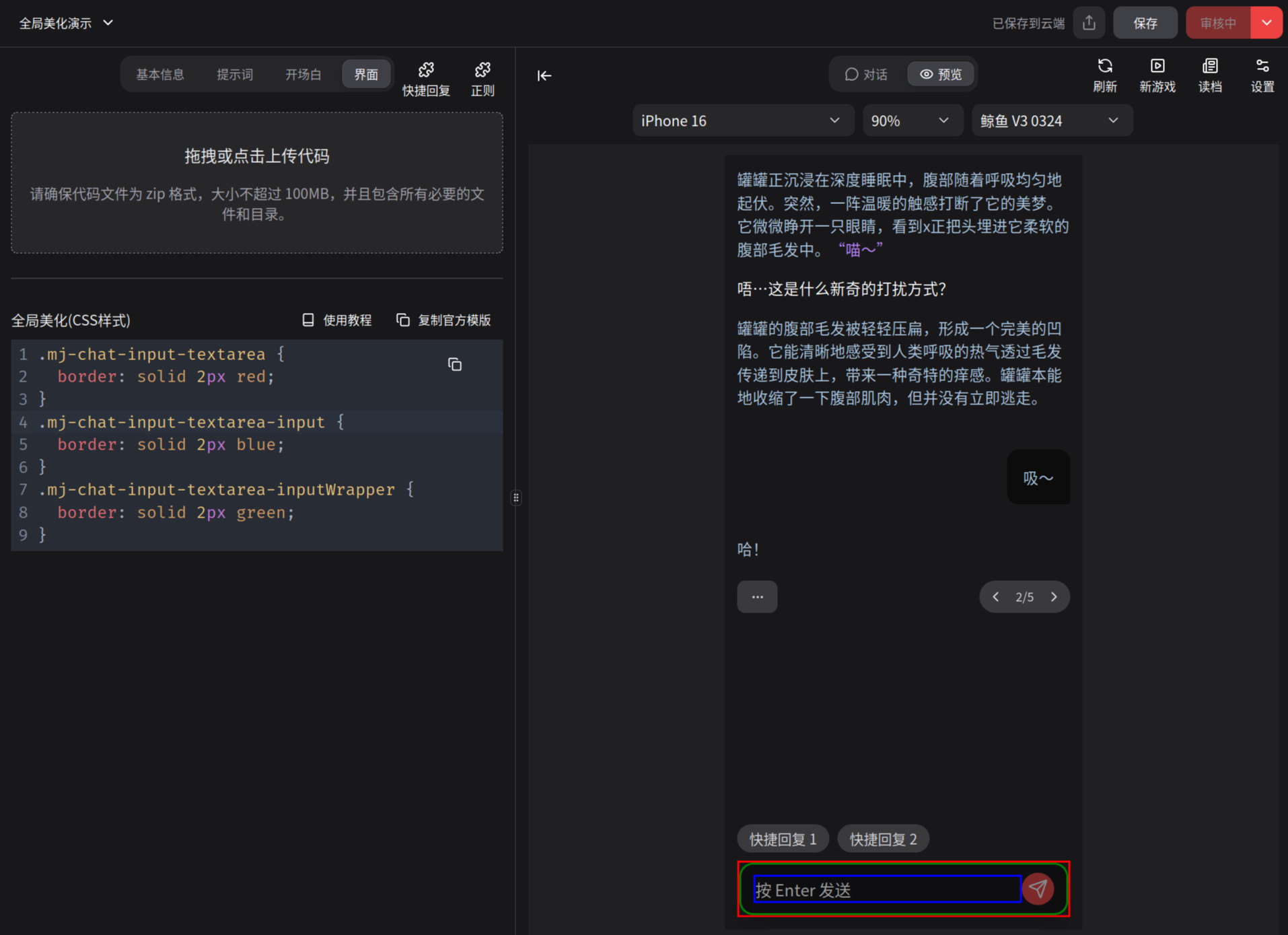
发送按钮
如图所示:
- 发送按钮
.mj-chat-input-textarea-send-button背景颜色设为了深红色 - 发送图标
.mj-chat-input-textarea-send-button-icon设置了绿色的边框
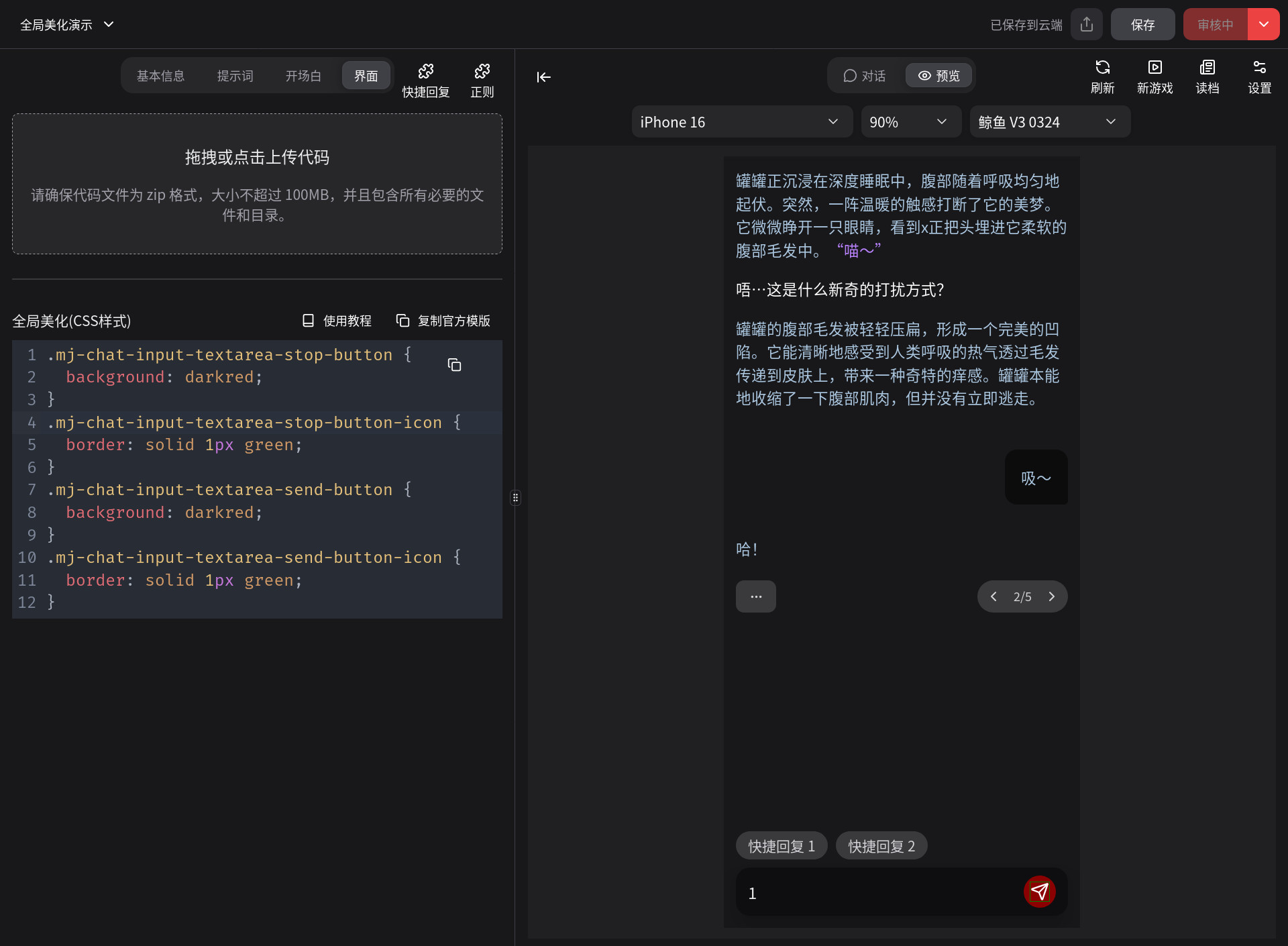
同样的,还可以对停止生成按钮设置样式
- 停止按钮
.mj-chat-input-textarea-stop-button - 停止按钮图标
.mj-chat-input-textarea-stop-button-icon